How to Fix SSD Not Showing Up in BIOS?
A missing SSD usually comes down to a poor connection, the wrong M.2 interface, a disabled controller, or failed hardware. Work through these checks without formatting the drive.
Shut the PC down fully, reseat the SSD, then check it in the BIOS storage menu rather than only the boot list. If it stays missing, verify M.2 compatibility plus shared-port limits before resetting firmware settings. Test the drive in another computer last.
Do not initialize, format, secure-erase, or reinstall Windows on the SSD if it contains needed files. Those actions will not make a drive appear in BIOS. They may make later recovery harder once the hardware becomes visible.
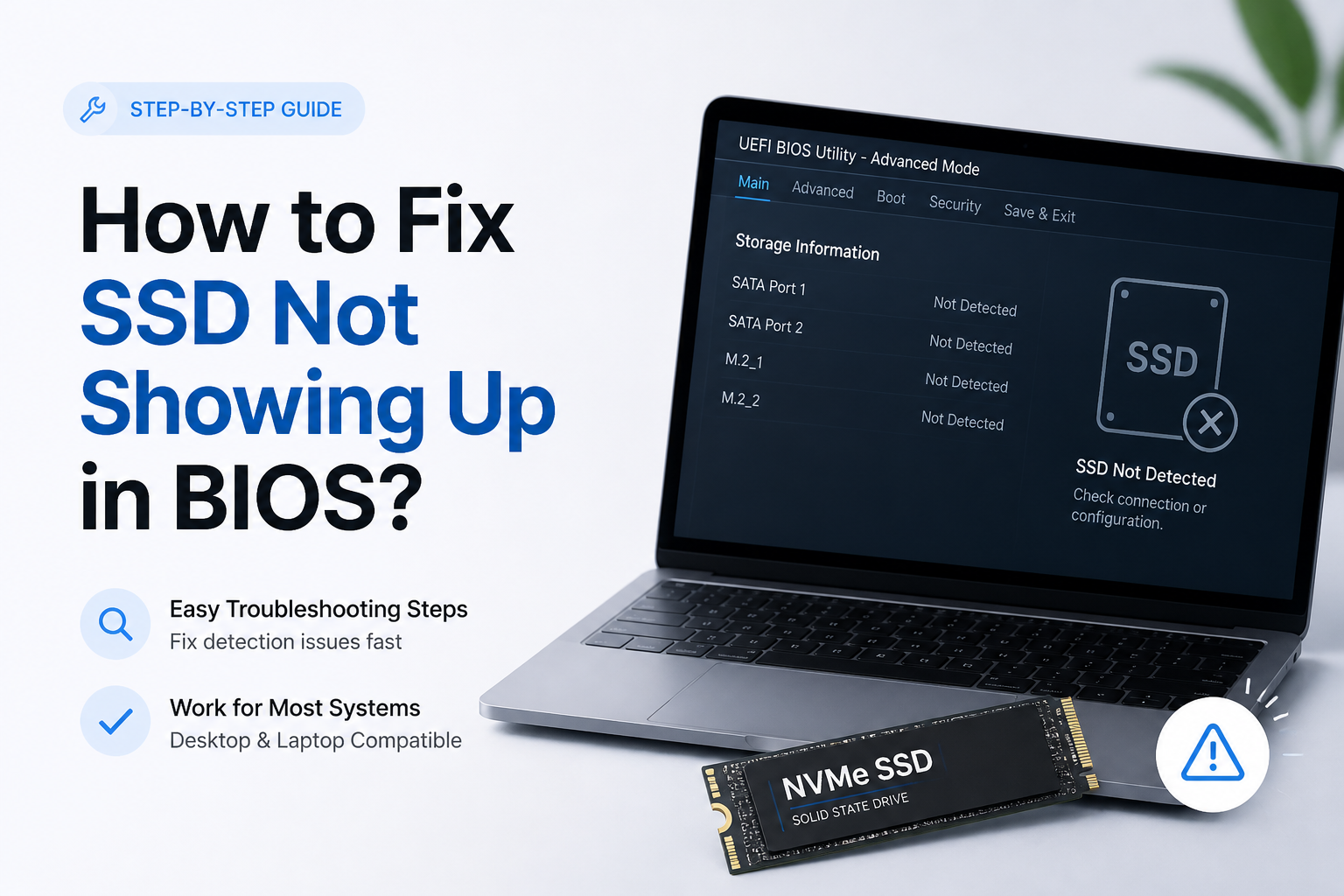
When Software Cannot Fix an SSD Missing from BIOS
BIOS detection happens before Windows, macOS, or recovery software loads. Disk-management tools, driver reinstallations, partition commands, plus file-recovery scans cannot communicate with a drive that the firmware never presents to the operating system.
Software becomes useful once the SSD appears as a physical disk, even if its partition is damaged or has no drive letter. Until then, focus on power, cables, slots, compatibility, firmware, plus testing in another machine.
What Different SSD Detection Results Usually Mean
If the SSD appears under NVMe or storage information but not in the boot menu, it may simply lack a bootable operating system. If it appears in another PC only, suspect the original slot, cable, controller setting, or motherboard. If no known-good system can detect it, the SSD itself becomes the main suspect.
Choose the Right Fix for an SSD Missing from BIOS
Begin with the connection checks, then move toward firmware or hardware testing.
| Method | Best for | Time | Success rate |
|---|---|---|---|
| 1. Power-Cycle the PC, Then Reseat the SSD TRY FIRST | Loose SSDs or cables | ~10 min | ● 78% |
| 2. Check the SSD Port, Slot, Plus Motherboard Limits | New M.2 installations | ~15 min | ● 72% |
| 3. Restore Safe BIOS Storage Settings | Changed or unstable BIOS settings | ~10 min | ● 58% |
| 4. Update the BIOS, Then Clear CMOS if Needed | Older boards with newer SSDs | ~30 min | ● 46% |
| 5. Test the SSD Elsewhere, Then Recover Its Files | Suspected board or SSD failure | ~30–90 min | ● 64% |
Top 5 Ways to Fix an SSD Not Showing Up in BIOS
01 Power-Cycle the PC, Then Reseat the SSD
Start here after a new installation, hardware move, or sudden disappearance
~10 min
Power-Cycle the PC, Then Reseat the SSD
Start here after a new installation, hardware move, or sudden disappearance
A loose M.2 connection, weak SATA plug, or incomplete power cycle can keep an SSD out of BIOS. Reseating the drive is the quickest useful test, especially if the problem began after work inside the PC.
- Shut down the PC, switch off the power supply, then unplug the power cord.
- Hold the case power button for 15 seconds to discharge leftover power.
- For a SATA SSD, reconnect both the narrow data cable plus the wider power cable. Try another SATA cable if one is available.
- For an M.2 SSD, remove its retaining screw, slide the drive out, then insert it fully at a slight angle before fastening it flat.
- Reconnect power, enter BIOS, then look under Storage, NVMe Configuration, or SATA Information.

02 Check the SSD Port, Slot, Plus Motherboard Limits
Best when an M.2 drive never appeared after installation
~15 min
Check the SSD Port, Slot, Plus Motherboard Limits
Best when an M.2 drive never appeared after installation
M.2 describes the drive's shape, not its electrical interface. Some sockets accept PCIe NVMe only, while others accept M.2 SATA. A populated M.2 slot may also disable one or two regular SATA ports.
- Find the exact motherboard or laptop model printed on the board, case label, or system documentation.
- Open its storage specifications, then confirm whether the chosen M.2 socket supports PCIe NVMe, M.2 SATA, or both.
- Review the manual's lane-sharing notes. Move a SATA SSD away from any port disabled by the occupied M.2 socket.
- If the board has another compatible M.2 slot, move the SSD there for a test.
- Restart into BIOS, then inspect the storage-device page rather than relying only on the boot-order screen.
03 Restore Safe BIOS Storage Settings
Useful after overclocking, a failed boot tweak, or a firmware reset
~10 min
Restore Safe BIOS Storage Settings
Useful after overclocking, a failed boot tweak, or a firmware reset
A disabled storage controller or unstable firmware setting can hide a working SSD. Loading defaults gives you a clean baseline, though existing RAID or Intel RST setups need extra care.
- Enter BIOS by pressing the key shown during startup, commonly Delete, F2, or Esc.
- Photograph current boot, RAID, Intel VMD, plus SATA settings before changing anything.
- Choose Load Optimized Defaults or the similarly named option, then confirm that SATA plus NVMe controllers are enabled.
- Leave the current SATA mode unchanged if Windows was installed under RAID, RST, or AHCI unless you have prepared the operating system for a switch.
- Save the settings, restart, then return to BIOS to check whether the SSD appears.
04 Update the BIOS, Then Clear CMOS if Needed
Try this for a newer NVMe SSD on older firmware or a corrupted setup
~30 min
Update the BIOS, Then Clear CMOS if Needed
Try this for a newer NVMe SSD on older firmware or a corrupted setup
A motherboard firmware update may improve storage compatibility or correct detection bugs. If settings remain stuck afterward, a CMOS reset can rebuild the hardware configuration from scratch.
- Record the motherboard's exact model plus current BIOS version from the firmware screen.
- Use another device to visit the motherboard maker's official support page, then read the release notes for storage, NVMe, or compatibility fixes.
- Download only the BIOS intended for the exact board revision, place it on a suitable USB drive, then follow the maker's built-in flashing procedure.
- Keep the PC on stable power during the update. Do not interrupt it, restart it, or remove the USB drive early.
- If the SSD remains absent, shut down, unplug the PC, then clear CMOS using the documented button, jumper, or battery procedure. Reconfigure any required boot settings afterward.
05 Test the SSD Elsewhere, Then Recover Its Files
The deciding test when BIOS still cannot detect the drive
~30–90 min
Test the SSD Elsewhere, Then Recover Its Files
The deciding test when BIOS still cannot detect the drive
Testing the SSD through another compatible connection separates a drive failure from a motherboard problem. If the second computer detects it, copy critical files first or scan it with Disk Drill before attempting initialization, formatting, or repairs.
- Connect the SSD to another compatible motherboard slot or a USB enclosure made for its exact interface. An NVMe enclosure will not accept an M.2 SATA drive unless it explicitly supports both.
- Check the second computer's BIOS, Windows Disk Management, or macOS Disk Utility for the physical device.
- If the SSD appears plus files open normally, copy the irreplaceable data to a separate healthy disk immediately.
- If the device appears but its volume is RAW, missing, or inaccessible, install Disk Drill on a different drive, select the SSD, then scan for lost data.
- Preview the found files where possible, then recover them to another disk. Never save recovered files back onto the troubled SSD.
- If the SSD is absent from multiple known-good connections, stop repeated power cycles. Contact the manufacturer for warranty help or a data-recovery lab if the files matter.
What to Do When BIOS Still Cannot See the SSD
Begin with a full power cycle plus a careful SSD reseat. That is the right first move after installing hardware, moving the PC, or opening its case. For a new M.2 drive, compatibility plus lane sharing deserve the next look.
If another computer detects the SSD, protect the files before making repairs. Use Disk Drill only after the operating system can see the physical device. A drive missing from every compatible system likely has a hardware fault.
Change one thing at a time, then check the BIOS storage page after each restart so you know which step solved the problem.